Here’s the video!
Step-by-Step Guide
Open SmartSend in your browser at smartsend.epost.ch and log in with your SwissID. In the SmartSend overview, click on “New Order” to get started.
Tip: For recurring shipments, after your first letter dispatch, you can select an existing template under “Template Selection”. This way, you transfer the address position and postage from a previous order directly.
Step 2: Upload Documents
Upload your main document as a PDF or ZIP file and give the order a name. With a ZIP upload, you can process multiple documents at once. If you want to include an enclosure with your shipments (e.g. a flyer), upload it separately as an “Enclosure”. Enclosures do not require an address and are automatically included with every shipment.
Important: The complete recipient address must be included in the PDF and must always be in the same position, otherwise the order cannot be processed. SmartSend reads the address directly from your document. A maximum of 1000 recipients can be processed per shipment.
Formatting Requirements
- PDF documents in A4 format, portrait (210mm x 297mm)
- The font used must be embedded; otherwise, SmartSend will replace it with a standard font
- Cleanly formatted page margins
Further specifications can be found in the SmartSend Formatting Guidelines.
Step 3: Describe Document
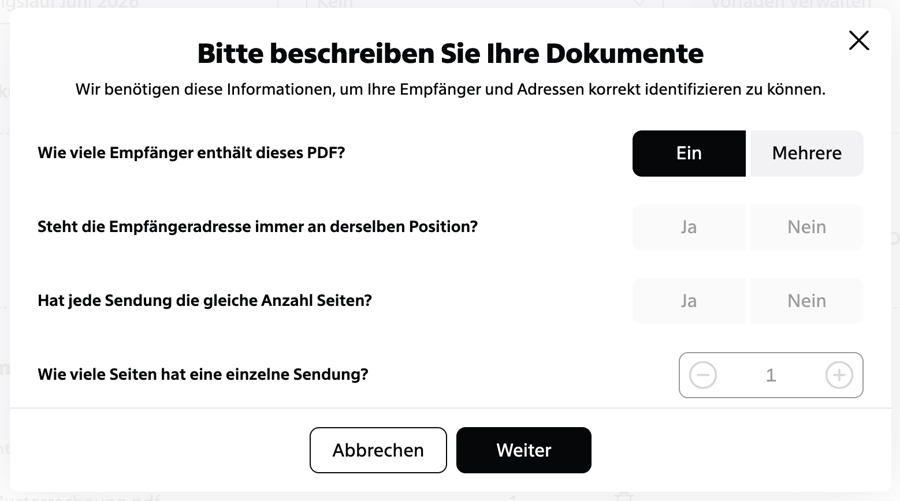
To ensure SmartSend recognises the addresses correctly, answer a few questions about your document:
Step 4: Determine Address Position
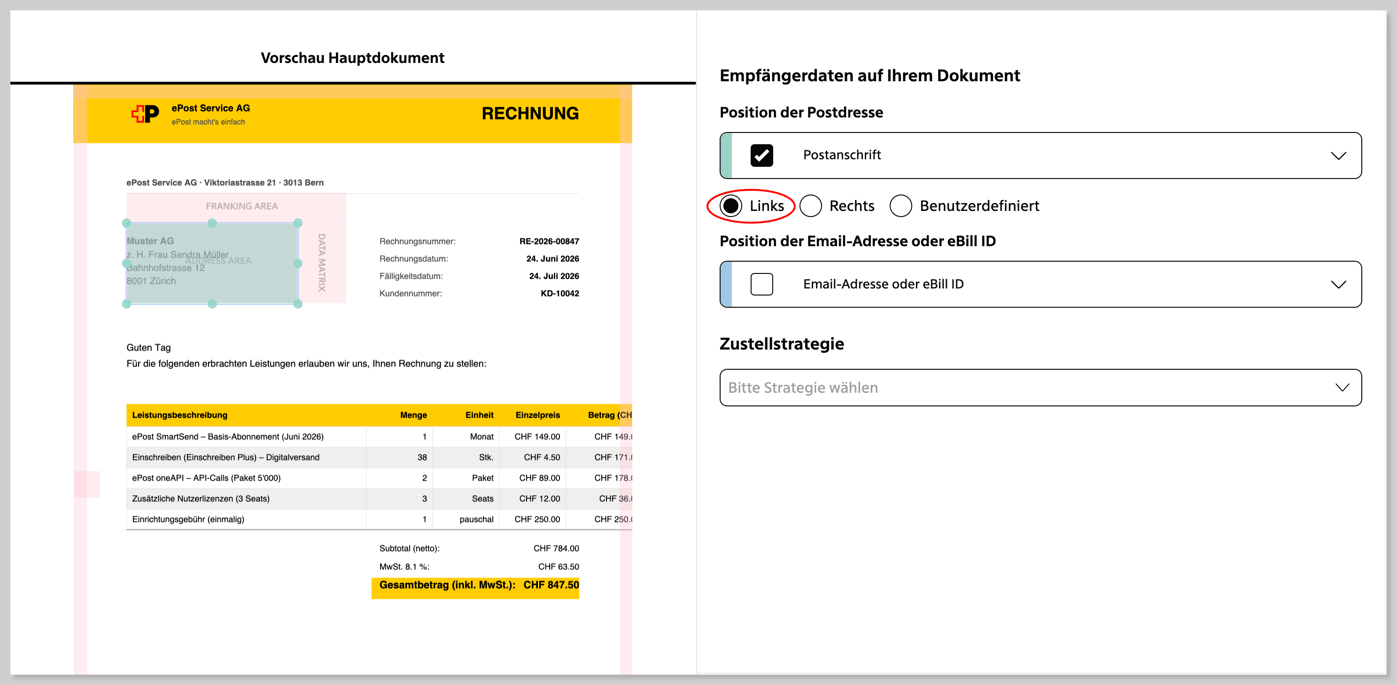
SmartSend shows a preview of your document. Choose whether the address is aligned left or right. If the address is not in one of the two standard positions, you can manually move the highlighted area.
Important: For a customised address position, SmartSend automatically adds an address cover sheet. This extra sheet causes additional costs for physical shipments (1 more sheet of paper).
eBill (optional): If you send invoices via eBill, specify here the position of the email address or eBill ID on your document. A one-time onboarding is required for eBill dispatch. More information can be found at epost.ch/de-ch/geschaeftskunden/ebill.
Step 5: Choose Delivery Strategy
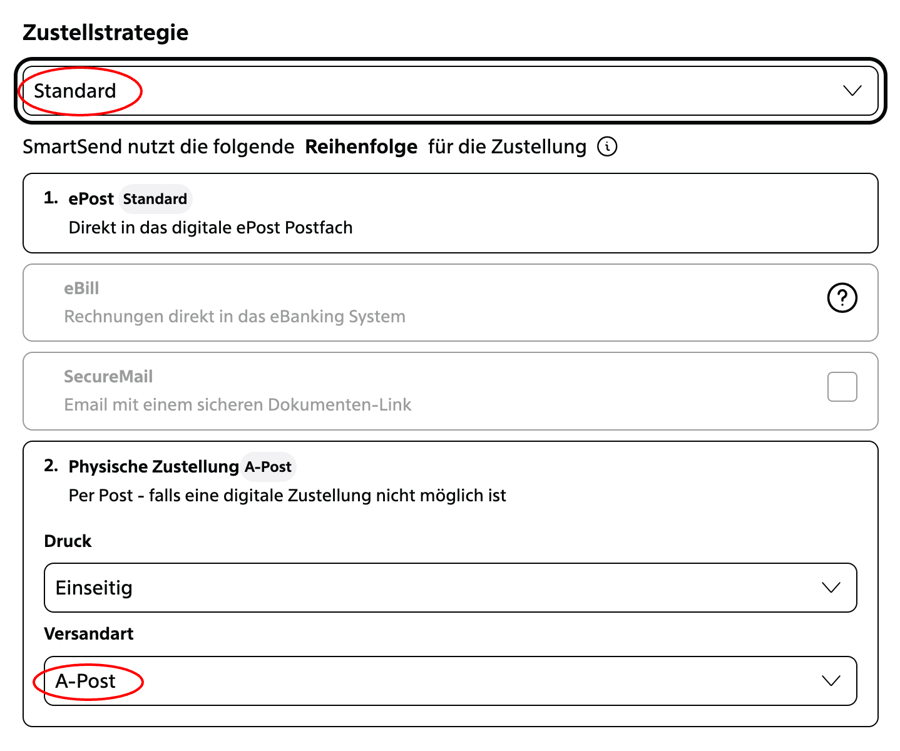
The delivery strategy determines which confirmations you receive for a digital delivery. Choose one of the three options:
- Standard – Delivery Confirmation: The shipment is delivered digitally and delivery is confirmed.
- Plus – Delivery Confirmation and Retrieval Receipt: Additionally, you receive confirmation once the recipient has opened the document — or a non-retrieval confirmation after 7 days.
- Registered Mail: The digital equivalent of classic registered mail. The recipient must actively accept or reject the shipment, including personal identification.
All options are documented with qualified timestamp and seal according to ZertES alongside the delivery confirmation. Find more information about the digital confirmations here.
Step 6: Choose Physical Delivery Method
If digital delivery is not possible, SmartSend automatically sends your shipment physically. Choose how these shipments should be delivered:
A-Post: Delivery on the next working day
B-Post: Delivery within 3 working days
B-Post Bulk Mail: for shipments of 350 recipients or more
A-Post Plus: for time-sensitive shipments with tracking
Registered Mail: with receipt confirmation (available as digital delivery since June 2026)
Also choose between single-sided (Simplex) and double-sided (Duplex) printing. No further settings are necessary.
Step 7: Automatic Address Verification
Click “Send”. SmartSend submits your order and automatically verifies the recipient addresses in the background.
How Automatic Delivery Works
SmartSend automatically checks which channel a recipient can be reached through and selects the optimal delivery method in the following order:
- ePost — The recipient uses ePost: The document is delivered digitally directly to their ePost mailbox.
- eBill — No ePost, but an invoice with eBill ID or email address: Delivery directly into e-banking (if eBill is activated).
- SecureMail — No ePost, no eBill, but an email address is available: The recipient receives a link to the secured document by email.
-
Physical Delivery — No digital channel available: The document is delivered physically by post.
.
Step 8: Complete Order
Open the processed order in the SmartSend overview. You will see a list of all recognised recipients with address verification status, assigned delivery channel, and number of pages. Check the list for completeness. Individual recipients can be removed if necessary. Click “Confirm & Send” to release the shipment.
If you do not release the order immediately, ePost will automatically remind you by email after one day.
Tip: If the order does not appear immediately in the SmartSend overview, refresh the page in your browser.
Step 9: Monitoring
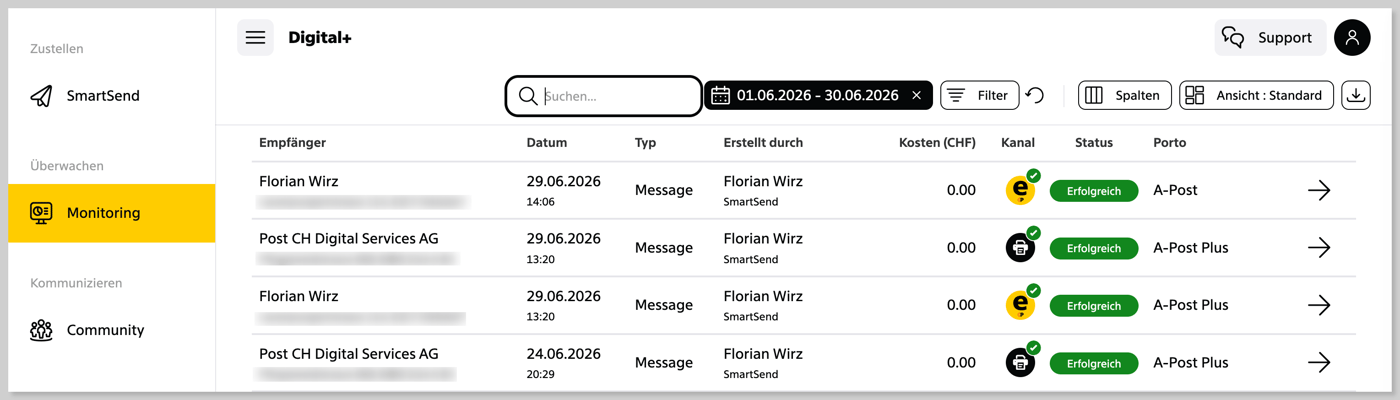
For detailed shipment tracking, go to ePost Monitoring via the site navigation or at client.epost.ch/de/monitoring. There you can see the status of each individual shipment, the delivery channel used, and the incurred costs.
Note: If you do not release the order immediately, ePost will automatically remind you by email after one day.